
Claude prompt generator with XML tags and projects
The Claude prompt generator turns a short brief into a prompt that Claude reads well, with each part in an Extensible Markup Language (XML) tag.
Live prompt
Write
Fill in the first box. The prompt builds and scores live.
0/100
Open the full Prompt Studio (Loop, Chain and Check).
XML tag map: the 9 tags of your Claude prompt, with the tokens inside each one
No prompt yet: 0 of 9 tags
Tokens are estimated at 4 characters each. Pick Claude as the AI to get the tags; other AIs get the same blocks as headings.
The short answer
The Claude prompt generator turns a short brief into a prompt that Claude reads well, with each part in an Extensible Markup Language (XML) tag. Describe the job in the builder, keep Claude selected, copy the result and paste it into a chat, a Project or the Application Programming Interface (API).
How to use it
Open the builder
The builder starts in Build mode with Claude selected as the target AI.
Choose the job and describe it
Pick the kind of task, then say what you need, who it's for and any facts Claude must use.
Copy it, or open it in Claude
Copy the tagged prompt, or use Open in Claude to start a new chat with it filled in. Paste your documents where the tags ask for them.
Test and tweak
Run it on a real input. Change one line and run it again if something's off, then save the better version in My prompts.
Claude prompt generator examples
Answer questions about a long document with quotes first
Documents first, question last, and quotes before the answer keep Claude tied to the text.
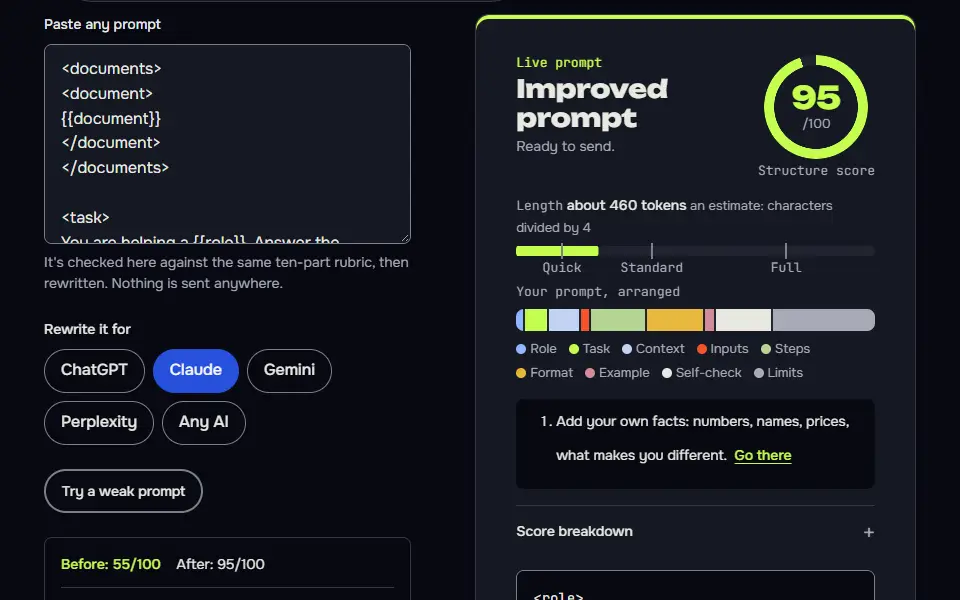
<documents>
<document>
{{document}}
</document>
</documents>

<task>
You are helping a {{role}}. Answer the question below using only the document above.
</task>

<steps>
1. Pull out the quotes from the document that are relevant to the question and list them first, in quote marks.
2. Answer the question using only those quotes. Work out how the clauses affect each other (timing, invoicing, refunds, fees), list amounts already paid separately from new amounts owed, and show the working. Check that no month or amount is counted twice.
3. If the document doesn't contain the answer, say "The document doesn't say" and stop. Don't guess.
</steps>

<format>
Quotes, then a short answer of 120 words or fewer, then one line on how confident you are and why.
</format>

<question>
{{question}}
</question>
How to use
- Copy it with the button above.
- Fill the blanks in {{double braces}} with your own details.
- Paste it into ChatGPT, Claude or Gemini and send it.
- Then follow up: ask for one change at a time.
Before you run “Answer questions about a long document with quotes first” for the first time, the lesson on how to use the prompts this tool writes walks through copying, filling and sending it.
A code review that separates bugs from taste
Splitting bugs from optional style notes, and allowing "fine as it is", stops padded reviews.
<task>
Review the code below as a careful senior engineer. The language is {{language}} and it runs in {{environment}}.
</task>

<code>
{{code}}
</code>

<steps>
1. Find real bugs, security problems and failure cases first. Say how each could be triggered.
2. Then list readability or style points, clearly labelled "optional".
3. For every item, give the line and a corrected snippet.
</steps>

<rules>
- Don't rewrite the whole file. Change only what you flag.
- If you aren't sure something is a bug, say "possible" and why.
- If the code is fine, say so in one sentence instead of inventing issues.
</rules>

<format>
A table with the columns Line, Severity (bug, possible bug, optional), Problem and Fix. After the table, one sentence on the riskiest item.
</format>
Edit a draft in your own voice, with a sample to match
A real voice sample works better than adjectives like "friendly", and the fixed rules protect the facts.
<voice_sample>
{{sample}}
</voice_sample>

<draft>
{{draft}}
</draft>

<task>
Edit the draft so it sounds like the voice sample, without changing what it says. The reader is {{reader}}.
</task>

<rules>
- Keep every fact, name and number exactly as written.
- Keep sentences varied: mix short and long ones, and use natural contractions.
- Cut filler openers and stock phrases. Don't add new claims or examples.
- Don't use em dashes or en dashes.
</rules>

<format>
The edited draft, then a list of the three biggest changes you made. Mark anything you weren't sure about with [check].
</format>
How the Claude prompt generator works
The Claude prompt generator works by asking about your job, then writing each part of the prompt inside its own XML tag for you to paste into a Claude chat, a Project or an API call. It scores the prompt from 0 to 100, runs in your browser and doesn't call an AI.
- BriefThe job, the audience and the facts Claude may use.
- TagEach part goes inside its own tag.
- ScoreA 0 to 100 structure score appears as you type.
- TestCopy it, or open it in a new Claude chat.
The builder starts in Build mode with Claude as the target. You choose the job (writing, analysis, code, Search Engine Optimization (SEO), planning and more), answer questions about the audience and the facts, and the tool fills in the rest, so you won't write a tag by hand. The finished layout suits 3 destinations: a chat, a Claude Project instruction or a system prompt for an app. An "Open in Claude" button sends the prompt to a new chat, so you can test it straight away.
Nothing you type leaves your browser until you copy or open it, and the generator's free with no Claude Console account. Got a prompt already? Switch the builder to Improve mode and it scores your prompt and rewrites it for Claude, so there's no separate improver to find.
Claude prompt formula
The Claude prompt formula puts documents first, then context, instructions, an example and the output format, with the question at the end, each part in its own XML tag. Anthropic's prompting best practices say to place long documents near the top of the prompt, above the query, instructions and examples, and report that a query at the end can improve response quality by up to 30 percent in tests, mostly with complex, multidocument inputs.
- roleThe part Claude plays in this job.
- taskThe one job, in a sentence.
- contextWho the answer is for and why.
- inputsYour facts and pasted material.
- stepsWhat to do, in order.
- output_formatThe shape and length of the answer.
- exampleOne sample, in shape.
- checklistChecks Claude runs before it replies.
- rulesDo-nots, limits and what to say when unsure.
- Claude prompt
<role>You are [who Claude is for this job].</role>
<task>[the one job].</task>
<context>Audience: [who it's for].</context>
<inputs>[your facts]</inputs>
<steps>1. [first step]</steps>
<output_format>[shape and length]</output_format>
<example>[one sample, in shape]</example>
<checklist>- [pass or fail check]</checklist>
<rules>[always, never, when unsure]</rules>Fill each bracket with your own words.
The generator's own layout has 9 parts, from role to rules, and it leaves a tag out when you don't give it anything for that part, so you'll never see an empty one. For a long document, move the inputs block to the top before you send the prompt. The same guidance says a tag around each type of content reduces misreading when a prompt mixes instructions, context, examples and variable inputs, and it suggests 3 to 5 examples, each wrapped in example tags. The result works as a Claude prompt template you'll reuse for the next job.
Claude XML tag reference chart
The Claude XML tag reference chart lists 6 common tags: instructions, context, documents, example, formatting and thinking, with what goes inside each and where it sits in the prompt.
<role>The part Claude plays in this job.1 of 9<task>The one job, in a sentence.2 of 9<context>Who the answer is for and why.3 of 9<inputs>Your facts and pasted material.4 of 9<steps>What to do, in order.5 of 9<output_format>The shape and length of the answer.6 of 9<example>One sample, in shape.7 of 9<checklist>Checks Claude runs before it replies.8 of 9<rules>Do-nots, limits and what to say when unsure.9 of 9
A nested layout for pasted documents
<documents>
  <document index="1">
    <source>[file name or link]</source>
    <document_content>[the text]</document_content>
  </document>
</documents>
Tag order comes from the generator. The 6 common tags and the nested layout follow Anthropic's prompting best practices, read on 16 November 2026.
| Tag | What goes inside | Where it sits |
|---|---|---|
<documents> | Pasted files, one document tag per file with its source name | At the very top, before any other tag |
<context> | Who the answer is for and why | After the documents |
<instructions> | What Claude should do, one step per line | After the context |
<example> | One sample of the answer you want, in shape | After the instructions |
<formatting> | The shape and length of the answer | After the example |
<thinking> | Room for Claude to reason step by step before its final answer | Asked for near the end, filled in by Claude in its reply |
These 6 names are conventions, not a fixed list, and Claude doesn't need one. Anthropic's guidance asks for consistent, descriptive names (its examples use instructions, context and input) and for nesting when content has a natural hierarchy. The generator writes 9 tags in the order its tag stack lists them: its inputs tag holds your documents, its output_format tag is the formatting tag, and its checklist tag asks Claude to run checks before it replies. It doesn't write a thinking tag.
Nesting matters most for pasted documents, since it's the nesting that lets Claude tell one file from the next. Anthropic suggests a <documents> tag that holds one <document> tag per file, each with <source> and <document_content> inside. Wrap your own files the same way, and keep the tag names the same across prompts so Claude sees one pattern.
Why does Claude follow XML tags well?
Claude follows XML tags well when the tags separate your instructions from the material they act on, so Claude doesn't treat a pasted document as an order.
Without markers on a long pasted document, Claude can mix up what's a rule and what's data, and wrapping the document in a tag fixes that, so it's a cheap fix. 3 habits come with it: put long documents first and the question last, ask for the relevant quotes before the answer when you need accuracy, and say what Claude should do when it isn't sure, such as "say 'not in the document'". Anthropic's guidance changes as models do, so treat these as good defaults and test your own version. The Claude prompts page has 12 finished examples.
Claude prompt, Project instruction or system prompt: which to use?
Use a Claude prompt for one task, a Project instruction for rules every chat in a Project should follow, and a system prompt for an app that calls the API. A prompt is for one job in one chat. A Project is a Claude workspace with files and instructions shared by every chat in it, so that's where the standing rules live. A system prompt for Claude is what a developer sets through the API.
The generator makes the first kind. For the other two, use the system prompt generator or the custom instructions generator. Rules for the API-level instruction, with full examples, are written up in Claude system prompt best practices. Standing rules for a whole Project, with a fill-in layout, are in the Claude project instructions template guide.
Claude prompt generator FAQ
Still stuck? Build it in Prompt Studio. It'll score each part as you go.
Does Claude have its own prompt generator?
Yes, Claude has its own prompt generator, and Anthropic offers it in its developer console, where it calls a model to draft the prompt; this page is a free, rule-based alternative that runs in your browser. It doesn't need a Console account, and repeating an answer returns the same prompt. Pick the Console one for API work and this one for everyday chat prompts.
Do I have to use XML tags with Claude?
No, you don't have to use XML tags with Claude, but tags help once a prompt has a document, an example or more than 3 instructions. Claude understands plain sentences too, and for a short question a clear sentence is enough.
Can I nest XML tags in a Claude prompt?
Yes, you can nest XML tags in a Claude prompt, such as several document tags inside a documents tag, each with its own source name. Anthropic advises nesting when content has a natural hierarchy. Keep the nesting to what the content needs, since every extra level adds tokens and one more tag to keep matched.
Do XML tags help in ChatGPT and Gemini prompts too?
Yes, XML tags help in ChatGPT and Gemini prompts too, since any model separates parts better with clear labels, though plain headings work just as well there. OpenAI's guide uses Markdown headers and lists to split sections, and XML tags to fence off reference content. For Gemini the generator uses plain headed sections and won't add tags.
How do I put a long document into a Claude prompt?
Put a long document at the top of the Claude prompt inside document tags, and ask the question at the end; Anthropic's guidance says this order gives better answers on long inputs. Wrap each file in its own document tag, with the file name or link in a source tag and the text in a document_content tag, and group them inside one documents tag. In the generator, paste them into the inputs block and move that block to the top.