
Image to prompt generator: describe any picture
The image to prompt generator can't read or upload images, unlike most image to prompt sites.
Live prompt
Image
Fill in the first box. The prompt builds and scores live.
0/100
Open the full Prompt Studio (Loop, Chain and Check).
Attribute checklist: the 8 details of your picture, ticked as you describe them
0 of 8 details described
- Subjectempty
- Settingempty
- Styleempty
- Lightempty
- Camera and lensempty
- Framingempty
- Coloursempty
- Shapeempty
Camera and lens and Colours sit under More options. Style and Shape fall back to a photograph at 1:1 until you pick them.
The short answer
The image to prompt generator can't read or upload images, unlike most image to prompt sites. It's a guided builder: you describe the picture in 7 main details, including subject, style, setting and light, and get a prompt for Midjourney, ChatGPT or Gemini. Use the ready prompts on this page, if you want a chatbot to look at your file.
This tool doesn't read images. It builds a prompt from your written description.
How to use it
Decide: file or description
Use a chatbot that accepts images and paste one of the 3 ready prompts on this page, if you have a file. Use the builder, if you don't.
Answer the seven details
Open the builder and describe the subject, setting, light, lens, composition, mood and shape. Short, concrete phrases work best.
Pick the model and copy
Choose Midjourney, ChatGPT images or Gemini images. Copy the prompt and run it.
Change one detail at a time
Change the light or the lens, not everything, if the picture is close but off, so you'll know what helped.
Prompt generator from image examples
Reverse-describe a picture for any image model
A fixed list of seven headings stops the description from drifting into a caption.
Attach your image first. The AI has to see it to answer.
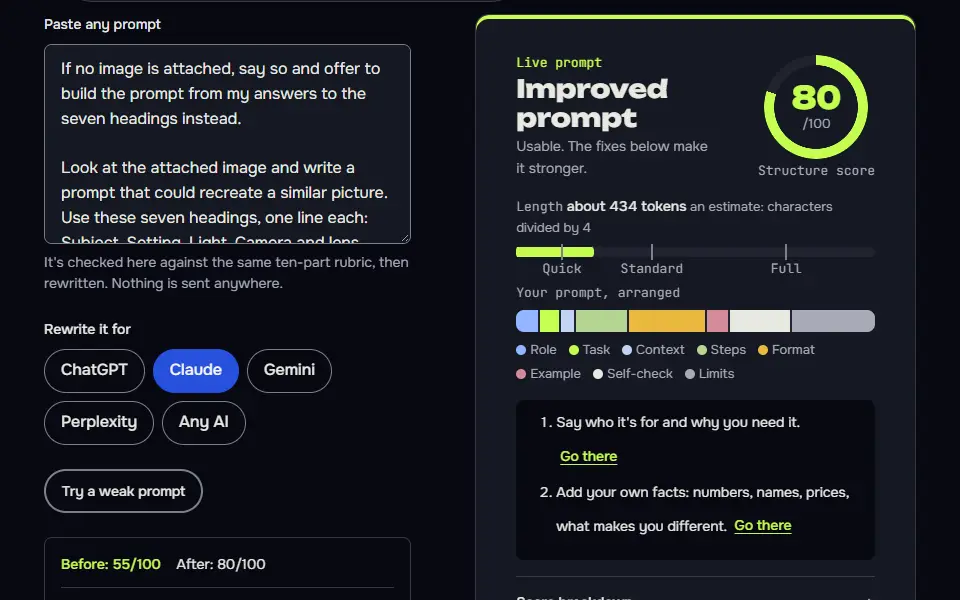
If no image is attached, say so and offer to build the prompt from my answers to the seven headings instead.

Look at the attached image and write a prompt that could recreate a similar picture. Use these seven headings, one line each: Subject, Setting, Light, Camera and lens, Composition, Mood, Aspect ratio (your best guess).

Then join them into one natural paragraph of about 70 words that I can paste into an image generator. Describe only what you can see. Don't name any real person in the image, and don't mention an artist or brand. If something is unclear, say "unclear" instead of guessing.
How to use
- Copy it with the button above.
- Fill the blanks in {{double braces}} with your own details.
- Paste it under your image and send it.
- Then ask for one change at a time.
Before you run “Reverse-describe a picture for any image model” for the first time, the lesson on how to use the prompts this tool writes walks through copying, filling and sending it.
Turn a picture into a Midjourney-style phrase list
Separating style from subject lets you reuse a look without recreating the original picture.
Attach your image first. The AI has to see it to answer.
If no image is attached, ask me for its colours, light, medium, grain and shape in one message, then write the prompt from my answers.

Look at the attached image. Write a Midjourney prompt for something in the same style, but of a new subject: {{new_subject}}.

First note, in one line each, the picture's palette, lighting, lens or medium, and texture. Then write the prompt as a comma-separated phrase list in that order: subject, setting, light, lens or medium, mood. End with an aspect ratio flag such as --ar 4:5 that matches the picture's shape. Add --no with up to four things that would spoil the look. Keep every detail of the new subject exactly as I wrote it. Don't add a version flag. Don't copy any text, logo or person from the original.Describe what to change to match a reference look
Turning differences into edit instructions gives you a prompt that changes a photo instead of inventing a new one.
Attach your image first. The AI has to see it to answer.
If you can't see two attached images, say so in one line and ask me to describe each one's light, colours, crop and mood instead.

Compare my photo (first attachment) with the reference look (second attachment). Don't describe either one in full. Instead list the 5 biggest differences in light, colour, framing and mood, as plain edit instructions in the form "Change X to Y". Then write one Nano Banana-style editing prompt that applies them, ending with "Keep the person's face, pose and clothing exactly the same." Use natural sentences, not keywords.
How the image to prompt generator works
The image to prompt generator works by asking you to describe the picture in 7 details and turning them into a prompt for Midjourney, ChatGPT or Gemini; it doesn't read or upload the image. The studio runs in your browser and handles text only, which means 3 things:
- The tool doesn't accept an image.There's no upload box, and nothing here analyzes pixels, so there's nothing to upload and nothing that's stored.
- The builder turns your description into a prompt.Seven fields are always visible (what the image shows, style, setting, light, framing, shape and leave-outs), and 2 more, camera and lens and colours, sit under the advanced toggle. The builder writes them in the right syntax for the model you pick.
- The tool never sees your picture.Your photos stay on your device unless you upload them to a chatbot yourself.
Tools sold as a reverse image prompt, img2prompt, image describer, image prompt extractor or caption generator usually analyze a file you upload, and this builder never does. Use a chatbot that accepts images, if you came to turn a file into a prompt.
Image to prompt formula
The image to prompt formula is subject, style, setting, light, colour, composition and mood, as in "red fox, watercolour, snowy pine forest, soft morning light, muted blues, centred, calm". Each detail takes one short phrase, and the order runs from the big facts to the small ones, so a model gets the subject before the mood.
[subject], [style], [setting], [light], [colour], [composition], [mood]For a chatbot that accepts images, attach the file and send this request:
Describe the attached picture as an image prompt in this order: subject, style, setting, light, colour, composition and mood. Use one short phrase for each and don't name any person.Skip a part instead of guessing, if you can't see it: a wrong detail costs more than a missing one.
Image to prompt attribute checklist table
The image to prompt attribute checklist table lists 7 attributes with what to look for in the picture and an example phrase for each. Work down it in order, and add the builder field it fills.
| Attribute | What to look for | Example phrase | Builder field |
|---|---|---|---|
| Subject | The one main thing in the frame | an elderly baker holding a tray of loaves | What should the image show? |
| Style | Photo, painting, render or drawing | watercolour painting | Style |
| Setting | Place, time of day, weather | in a narrow street at dawn, light rain | Setting and moment |
| Light | Direction, softness and colour of the light | soft natural window light | Light |
| Colour | 2 or 3 dominant colours | warm browns and cream | Colours (advanced) |
| Composition | Distance from the subject, layout and frame ratio | close-up, subject on the left third, 4:5 portrait | Framing and Shape |
| Mood | The feeling the picture gives off | quiet, early-morning calm | Setting and moment, or Light |
Camera and lens (85 mm is about 3.3 in, with a shallow depth of field) sit under the advanced toggle, if you know them. A prompt cannot recover 4 things: the exact face of a person, the exact layout, readable small text and the original prompt that made the picture. Name what you can see and expect a similar image, not a copy.
How do you get a prompt from an actual image file?
To get a prompt from an actual image file, attach it in ChatGPT, Gemini or Claude and paste one of the 3 describe prompts on this page, which ask for the same 7 details. They ask for an AI image description in the form image models understand, and they're deliberately cautious about what to say. Here are the trade-offs:
- The chatbot sees your file, so check its privacy settings before you upload anything personal.
- The result describes the picture. It can't recover the exact prompt that made it, and a new image will look similar, not identical.
- Describe style, light and composition. Don't ask it to name the people in a photo or to copy a living artist's style.
When is a describe-it builder better than an upload tool?
A describe-it builder is better than an upload tool when the photo is private, shows a face or belongs to a client, or when you want the new image to differ on purpose. It's the right pick, too, when you can see the picture in your head but don't have a file. The builder has no upload step: you write what you see, the builder arranges it, and you can change one detail at a time to move the result closer. Our AI image prompt tips explain what each detail does, and the Midjourney prompt generator is the same builder set to Midjourney.
To make a vision assistant describe every image the same way, write its standing rules with the AI system prompt generator and list your 7 details there. A picture can start a story too: the story prompt generator turns a scene into a writing prompt.
Prompt generator from image FAQ
Still stuck? Build it in Prompt Studio. It'll score each part as you go.
Does the image to prompt generator upload my image?
No, the image to prompt generator never uploads your image, since you describe the picture in words. It hasn't got an upload box and doesn't analyze files, so nothing on this page sees or stores your picture.
Will an image to prompt result recreate my picture exactly?
No, an image to prompt result won't recreate your picture exactly; it gets the subject, style and mood close, and each model draws its own version. To get closer, add the details it missed and change one thing at a time.
Can an image to prompt tool copy a face or an exact layout?
No, an image to prompt tool can't copy a face or an exact layout from words alone; use an image edit tool with the original photo for that. A prompt describes how a picture looks, and a model draws a new image from those words each time.
Which chatbots can describe an image for a prompt?
3 chatbots describe an image well for a prompt: ChatGPT, Gemini and Claude, each when you attach the image in the chat. Send the same request to two of them and merge the phrases, as each one notices details the others don't.