
Nano Banana prompt generator with a keep line for each edit
A Nano Banana edit prompt names what to change plus what must stay exactly the same.
Live prompt
Photo edit (Nano Banana style)
Fill in the first box. The prompt builds and scores live.
0/100
Open the full Prompt Studio (Loop, Chain and Check).
Keep and change: the 6 parts of your photo, and which ones your edit touches
Describe the change to see what stays the same
- Facekeep
- Hairkeep
- Posekeep
- Clothingkeep
- Backgroundkeep
- Lightingkeep
The builder reads the words in your change. A part your change names drops off the keep line, and a new background takes the lighting with it.
The short answer
A Nano Banana edit prompt names what to change plus what must stay exactly the same. The builder asks what's in your photo and what to change, then writes a keep line for the face, hair, pose, clothing, background and lighting you're not changing. Attach your photo in Gemini yourself, since the builder never sees or uploads it.
How to use it
Open the builder
The builder starts on the photo edit pack with Gemini images selected.
Describe the photo and the change
Say what's in the photo, the one edit you want, and what must stay the same. Turn on the face lock if it's a photo of you.
Copy the prompt into Gemini
Attach your photo in Gemini first, then paste the prompt. Your photo doesn't go through this site.
Refine in follow-up turns
Reply with just that fix, such as "make the light warmer", instead of starting over, if one thing is off.
Nano Banana prompt generator examples
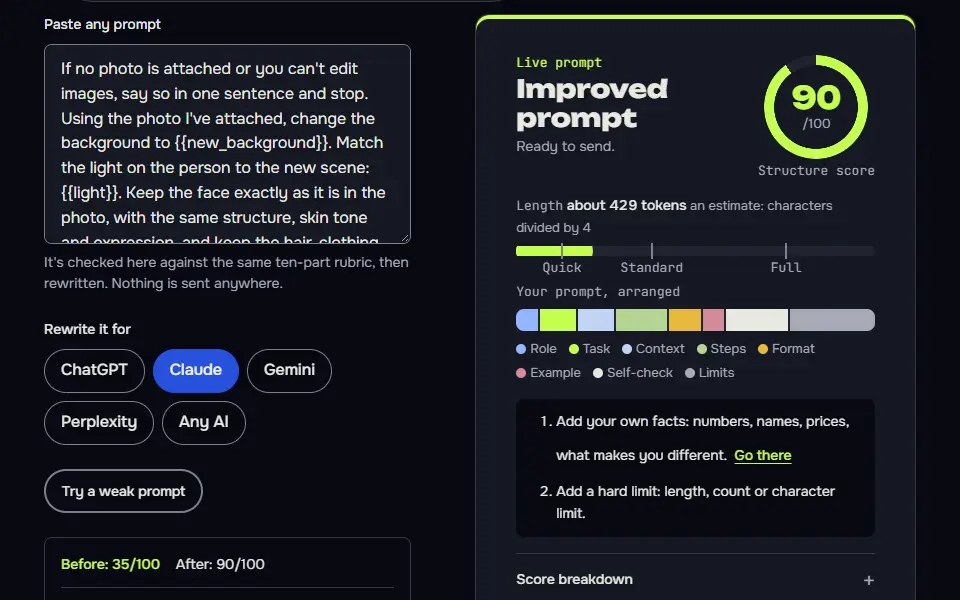
Swap the background and keep the person
Matching the light to the new scene is what stops the person looking pasted in.
Attach your photo first. “Swap the background and keep the person” edits a photo you upload, so it won't work without one.
If no photo is attached or you can't edit images, say so in one sentence and stop. Using the photo I've attached, change the background to {{new_background}}. Match the light on the person to the new scene: {{light}}. Keep the face exactly as it is in the photo, with the same structure, skin tone and expression, and keep the hair, clothing and pose unchanged. Make the edges around the hair look natural, with no glow or cut-out line. Output a {{ratio}} image.
How to use
- Copy it with the button above.
- Fill the blanks in {{double braces}} with your own details.
- Paste it under your photo in your image AI and generate.
- Then ask for one change at a time, not a new prompt.
Before you run “Swap the background and keep the person” for the first time, the lesson on how to use photo edit prompts walks through copying, filling and sending it.
Restyle a room without moving the furniture
Listing the things that may change, and the things that may not, keeps the room recognisable.
Attach your photo first. “Restyle a room without moving the furniture” edits a photo you upload, so it won't work without one.
If no photo is attached or you can't edit images, say so in one sentence and stop. Using the room photo I've attached, restyle the space as {{style}}. Change only the wall colour, the soft furnishings and the lamps. Keep the layout, the windows, the floor and every piece of furniture in exactly the same place. Keep the lighting direction the same as in the photo. The result should look like a real photograph, not a render.Give a photo a film look without changing the scene
Telling it which things are off limits turns a vague "film look" into a controlled colour edit.
Attach your photo first. “Give a photo a film look without changing the scene” edits a photo you upload, so it won't work without one.
If no photo is attached or you can't edit images, say so in one sentence and stop. Using the photo I've attached, apply this colour grade: {{look}}. Adjust only colour, contrast and grain. Don't change the composition, the faces, the clothing or any objects, and don't add or remove anything. Keep skin tones natural. Keep every face exactly as it is in the photo. If the photo is already close to this look, make only a light change and tell me what you changed in one sentence.How the Nano Banana prompt builder works
The Nano Banana prompt builder works in 3 steps: you say what's in your photo, pick the change and see what must stay, and it writes one edit prompt to paste into Gemini with your photo attached there. Nano Banana is the nickname for Google's Gemini image editing models, and they follow sentences better than keyword lists. The builder opens the Prompt Studio on the Photo edit pack, set to Gemini images:
- What's in the photo.A short label, such as "my headshot taken in the kitchen".
- What to change.The edit in your own words, plus a leave-out field that starts as "new people, text, logos". A shape pick sits next to them and changes only the Midjourney version.
- What to keep.The builder reads your change for the words that name a part of the photo and writes every other part into the keep line. Then you copy the prompt.
You attach the photo yourself in Gemini, as the reference photo. The builder only writes the words, so your image never passes through this site, and it never asks you to draw a mask. Your Gemini plan sets how many edits you can run in a day, and Google lists the current limits on its Gemini Apps help page.
Nano Banana prompt formula
The Nano Banana prompt formula is edit verb, target, new detail, keep line, then aspect ratio, as in "Replace the background with a rainy Tokyo street at night; keep my face, hair, pose and jacket exactly; 4:5".
[Edit verb] [target] [new detail]; keep [what stays] exactly; [aspect ratio]The builder's own output for a background swap reads: "Using the photo I've attached, change this: replace the kitchen background with a bright office. Keep everything else identical: the person's face, hair, pose and clothing. Adjust the light on the subject only as much as needed to match the new background. Don't add: new people, text, logos. Return one edited image at the original framing." It puts the leave-out line after the keep line and asks for the original framing, so add a ratio such as 4:5 or 9:16 at the end yourself when you want a new shape.
Nano Banana edit verbs chart
The Nano Banana edit verbs chart lists 6 verbs: replace, remove, relight, restyle, extend and retouch, each with the parts it must keep and one sample line.
| Edit verb | Sample line | Word the builder reads | What the keep line names |
|---|---|---|---|
| Replace | Replace the background with a rainy street | background | Face, hair, pose and clothing. It adds a sentence to match the lighting and leaves lighting off the list. |
| Remove | Remove the person on the right | none | All 6 parts: face, hair, pose, clothing, background and lighting |
| Relight | Relight the photo with warm light from the left | light | Face, hair, pose, clothing and background |
| Restyle | Restyle my jacket as a navy blazer | jacket, blazer | Face, hair, pose, background and lighting |
| Extend | Extend the background to the left by a third | background | Face, hair, pose and clothing, plus the lighting-match sentence |
| Retouch | Retouch the skin and remove the shine | skin | Hair, pose, clothing, background and lighting |
The builder reads the part you name, not the verb. It looks for face words (face, skin, eyes, smile, teeth, expression), hair words (hair, hairstyle, fringe, beard), pose words (pose, posture, arms, hands, head tilt), clothing words (outfit, jacket, shirt, dress, suit, tie), background words (background, backdrop, scene, room, wall) and lighting words (light, lighting, exposure, shadows). Name the part you're changing in plain words so the keep line drops it.
Why does every Nano Banana edit need a keep line?
Every Nano Banana edit needs a keep line, since the model redraws any part the prompt leaves open; naming the face, hair and light you aren't changing holds them in place.
An image to image edit starts from your photo, so every part you don't name can change. The pattern that works is 1 change, then 1 sentence about what stays: "Swap the lamp for a brass one. Leave the desk, the books and the window light untouched." Name only what you aren't changing, make 1 change per turn, and refine in follow-up messages instead of rewriting the prompt. The Nano Banana prompt guide goes deeper, and the Nano Banana prompts page has ready-made edits to copy.
How do you keep a face the same in Nano Banana, and what's off limits?
To keep a face the same in Nano Banana, put "keep my face exactly as in the photo" first and make one change per turn; editing other people's photos without consent, public figures and minors is off limits.
The builder's keep line already names the face unless your change is about it. Use it only for photos of yourself, or of people who've said yes, and don't use it to make someone appear to do or say something real. Results can still drift a little, so check the face before you post an image, and regenerate when it's off.
Ready portrait looks for men, from suits to street style, are on AI photo prompts for men, for when you want to paste a prompt instead of building one. For a traditional drape in Gemini without building it field by field, use the lines on AI photo prompts in a saree.
Nano Banana prompt generator FAQ
Still stuck? Build it in Prompt Studio. It'll score each part as you go.
Does the Nano Banana prompt builder upload my photo?
No, the Nano Banana prompt builder never sees or uploads your photo, since you attach the photo in Gemini and this page only writes the words. The picture goes to Google, so check Google's privacy settings before you upload a personal photo.
Should I make one edit per turn in Nano Banana?
Yes, make one edit per turn in Nano Banana, then ask for the next change in a follow-up. Stacked edits make a face or background drift, and one change per turn leaves one cause to fix.
Why did Nano Banana change the face in my photo?
Nano Banana changes the face when the prompt doesn't lock it or asks for several edits at once; add the keep line, upload a sharper front-facing photo and regenerate.
Can I set the aspect ratio in a Nano Banana edit prompt?
Yes, you can set the aspect ratio in a Nano Banana edit prompt by naming it at the end, such as "4:5", and asking again with "output as 4:5" if Gemini keeps the original frame. The builder's Gemini version asks for the original framing, so add the ratio yourself.
How do I match lighting when I change a background in Nano Banana?
To match lighting when you change a background, name the new light source and direction in the same line, such as "warm sunset light from the left on my face". Writing "background" in the change makes the builder add a sentence that matches the subject's light to the new scene. The Nano Banana prompts page has a colour temperature chart with words to use.