
Video prompt generator: write one shot for Veo or Kling
A video prompt generator asks for one subject, one action, one camera move, the light and the sound, then returns that shot as text you paste into Veo or Kling.
Live prompt
Video shot prompt
Fill in the first box. The prompt builds and scores live.
0/100
Open the full Prompt Studio (Loop, Chain and Check).
Plan the shots: pick how many, how long, and the camera move for each
12 seconds in all. 3 shots of 4 seconds make 12 seconds in all.
| Seconds per shot | 1 shot | 2 shots | 3 shots | 4 shots | 5 shots | 6 shots |
|---|---|---|---|---|---|---|
| 2 s | 2 | 4 | 6 | 8 | 10 | 12 |
| 3 s | 3 | 6 | 9 | 12 | 15 | 18 |
| 4 s | 4 | 8 | 12 | 16 | 20 | 24 |
| 5 s | 5 | 10 | 15 | 20 | 25 | 30 |
| 6 s | 6 | 12 | 18 | 24 | 30 | 36 |
| 7 s | 7 | 14 | 21 | 28 | 35 | 42 |
| 8 s | 8 | 16 | 24 | 32 | 40 | 48 |
| 9 s | 9 | 18 | 27 | 36 | 45 | 54 |
| 10 s | 10 | 20 | 30 | 40 | 50 | 60 |
Running time is the number of shots times the seconds per shot. Clip limits differ by tool and plan, so check the limit of the video tool you use before you plan a long sequence.
The short answer
A video prompt generator asks for one subject, one action, one camera move, the light and the sound, then returns that shot as text you paste into Veo or Kling. The runtime chart on this page adds up the clips you chain.
How to use it
Pick your video model
Choose Veo or Kling and open the matching example. Both are short, single-shot briefs.
Fill in the shot
Add the idea, the length and the shape. Keep it to one subject, one action and one camera move.
Paste it into a chat AI
ChatGPT, Claude or Gemini will write the finished prompt. Ask for a second version, if you want to compare.
Run it in your video tool
Paste the result into Veo or Kling. Change one part, such as the camera move, and try again, if the clip drifts.
Video prompt generator examples
A single Veo shot with audio
Fixing the order and limiting the clip to one action stops the prompt trying to tell a whole story.
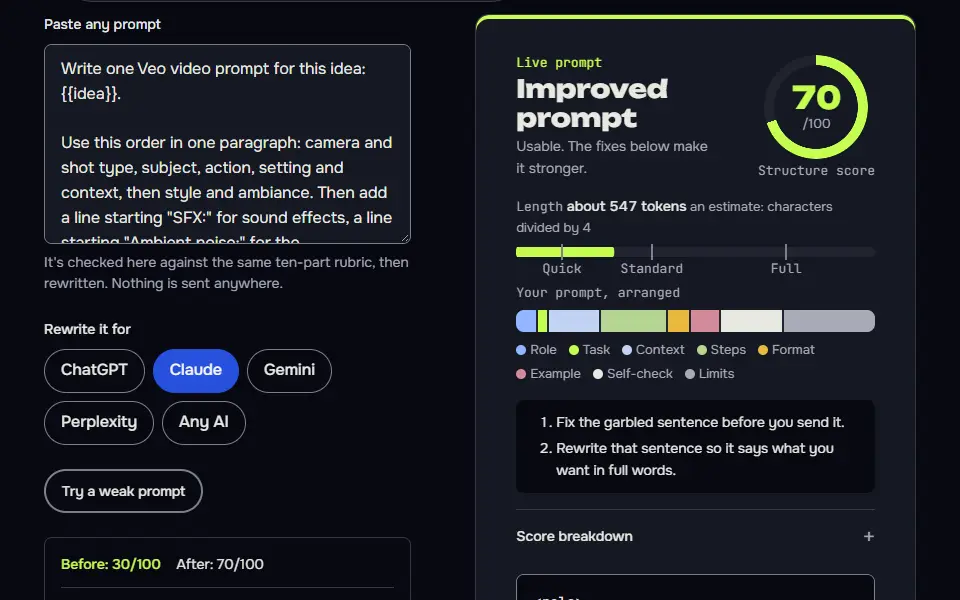
Write one Veo video prompt for this idea: {{idea}}.

Use this order in one paragraph: camera and shot type, subject, action, setting and context, then style and ambiance. Then add a line starting "SFX:" for sound effects, a line starting "Ambient noise:" for the background, and, if anyone speaks, one short line of dialogue in quote marks with the speaker named.

Rules: one shot only, one camera move, one main action. Length {{seconds}} seconds, aspect ratio {{ratio}}. Describe what is seen and heard, not feelings. Don't include real people, brands or trademarked characters. Don't use em dashes or en dashes.
How to use
- Copy it with the button above.
- Fill the blanks in {{double braces}} with your own details.
- Paste it into ChatGPT, Claude or Gemini and send it.
- Then follow up: ask for one change at a time.
Before you run “A single Veo shot with audio” for the first time, the lesson on how to use the prompts this tool writes walks through copying, filling and sending it.
A Kling prompt with environment and camera labelled
Labelled parts and a word cap keep the prompt readable and easy to adjust one label at a time.
Write one Kling video prompt for this idea: {{idea}}.

Structure it in labelled parts in this order: Subject and action, Environment, Camera, Style, Audio. Keep the whole thing under 90 words. Use one clear camera move, such as a slow push-in or a low tracking shot, and one action the subject can finish in {{seconds}} seconds. Aspect ratio {{ratio}}. Avoid text on screen, real people, and trademarked characters. If audio isn't useful, write "Audio: none".
Turn a script into a numbered list of separate clip prompts
Listing what each clip must match is what keeps a stitched video from jumping between looks.
Here is a short script or idea for a video of about {{total}} seconds:

<script>
{{script}}
</script>

Split it into separate clips of 4 to 8 seconds each. For every clip give: a number, a one-sentence prompt (camera, subject, action, setting, light), the sound, and a note on what the next clip must match for continuity, such as clothing, time of day or direction of movement.

Keep each clip to one shot, one camera move and one action. Don't ask any clip to show text or a close-up of hands unless the script requires it. Output a numbered list I can paste into the video tool one clip at a time.
How the video prompt generator works
The video prompt generator works by turning your idea into a shot plan, then writing one brief per shot for Veo or Kling; it doesn't render the video. A chat AI then rewrites each brief as a text to video prompt in that model's format. The Prompt Studio has no video mode, so the tool runs in four steps:
- Pick the model.Choose the Veo or Kling example, or the shot-list example, which plans a storyboard of several clips for a longer script.
- Fill in the shot.Add subject, action, camera, light, sound, length and shape.
- Paste it into a chat AI.ChatGPT, Claude or Gemini writes the finished prompt in that model's layout.
- Run it in the video tool.The generator doesn't render any video. You generate the clip in Veo, Kling or another tool, such as Runway or Luma, under its plan and terms.
Skip the building when you want a finished prompt to paste: the Veo 3 prompts page, which is a list of ready-made prompts, has them. Structured briefs written in JavaScript Object Notation (JSON) are on the Veo 3 JSON prompts page.
Video prompt formula
The video prompt formula is subject, action, camera move, setting, light, then sound, as in "a cyclist, climbs a wet hill, slow tracking shot, mountain road, overcast dawn, rain on the helmet". The builder writes the same parts as labelled slots, one sentence or label per part, and adds a length. Each part answers one question about the clip, so a missing part is easy to spot, and the formula fits one shot of 4 to 8 seconds, which is the clip length Veo lists. A shot prompt for any AI video generator is easy to check this way.
[subject] [one action]. Camera: [framing and one move]. Light: [source and colours]. Audio: [spoken words in quotes, sound effects (SFX), ambient sound]. Length: [4 to 8 seconds].Fill every slot with something the viewer can see or hear, and leave a slot out when the clip doesn't need it. A quiet clip with no speech needs no audio line. Label each part, since a labelled slot is easy to edit when a result misses and you're changing one thing at a time.
Video runtime chart
The video runtime chart adds up shots times seconds per shot, so a 4-shot plan at 8 seconds a shot shows a 32-second clip. It lists the total runtime of 1 to 5 clips of 4, 6 or 8 seconds each, and the clips you need to reach 15, 30 and 60 seconds.
| Clips | 4 s each | 6 s each | 8 s each |
|---|---|---|---|
| 1 | 4 s | 6 s | 8 s |
| 2 | 8 s | 12 s | 16 s |
| 3 | 12 s | 18 s | 24 s |
| 4 | 16 s | 24 s | 32 s |
| 5 | 20 s | 30 s | 40 s |
| Target | 4 s clips | 6 s clips | 8 s clips |
|---|---|---|---|
| 15 s | 4 clips (16 s) | 3 clips (18 s) | 2 clips (16 s) |
| 30 s | 8 clips (32 s) | 5 clips (30 s) | 4 clips (32 s) |
| 60 s | 15 clips (60 s) | 10 clips (60 s) | 8 clips (64 s) |
Google's Veo 3.1 prompting guidance lists clips of 4, 6 or 8 seconds, so those three lengths set the columns. Check your tool for its current clip lengths, since they don't stay the same between versions and plans. Use its lengths in the same sums, if the tool doesn't list 4, 6 and 8.
There's no per-model length table here: a table with a number for every model needs two sources for each cell, and the vendors change their limits often, so check the length limit in the tool you use.
What goes in a good AI video prompt?
A good AI video prompt holds one subject doing one action with one camera move, plus the light and the sound you want to hear. That's one shot per prompt, and you'll chain shots for longer clips. Don't stack two actions in one clip; it's the most common reason a shot drifts. Google's Veo 3.1 guidance (checked 10 November 2026) opens with the camera work, then names the subject, the action and the context, and ends on style and mood. Put the dialogue in quotes, give sound effects (SFX) their own label and give background sound an ambient noise label, so the sound design sits in the same prompt. Clips are short, so a story won't fit, and one camera movement per clip, such as a slow dolly in, plus one action is the safest plan for a cinematic prompt. Kling responds to the same ideas. Its limits depend on your provider, so check the tool you use.
What happened to Sora, and what should you use instead?
Sora has closed: OpenAI shut the app and then its Application Programming Interface (API) in 2026, so use Veo or Kling for the same kind of clip, and this generator writes prompts for both. OpenAI's help center gives the dates: the web and app experiences ended on 26 April 2026 and the API on 24 September 2026. That's why this page has replaced the old "Sora prompt generator" idea. Sora-style scripts still work as templates for Veo and Kling, if you've got any. See the Sora prompts archive, which gives every prompt a Veo version and a Kling version.
A still frame or poster for the same idea comes from the AI text-to-image prompt generator. Shot lists and scripts from a chat can be saved as a Portable Document Format (PDF) document with ChatGPT response to PDF.
Video prompt generator FAQ
Still stuck? Build it in Prompt Studio. It'll score each part as you go.
Can I still use a Sora prompt generator?
No, a Sora prompt generator has nothing to run on now that Sora has closed; the same prompt works in Veo or Kling with small edits, and you won't lose the scene. Our Sora archive page rewrites each old prompt for both.
How do I add dialogue and sound to a Veo prompt?
To add dialogue to a Veo prompt, put the spoken line in quotes after the speaker, and name sound effects in a separate line, such as "Sound: distant thunder". Background sound gets its own line too, such as "Ambient noise: soft cafe chatter".
How many shots should one video prompt describe?
One video prompt should describe one shot, then you chain the clips; several shots in one prompt usually blur into one. The runtime chart tells you how many clips to plan.
Do the same video prompts work in Veo and Kling?
Yes, the same video prompts work in Veo and Kling with small changes: the shot carries over, so you'll only move the speech and the layout. Veo reads flowing prose with an audio sentence, and the Kling example on this page asks for one compact paragraph under 90 words.
Does this generator make the video?
No, this generator doesn't make the video: it writes the prompt only. You paste it into Veo, Kling or another video tool and generate the clip there, under that tool's plan and terms. Don't use real people's likeness or trademarked characters in a prompt, and don't pass off AI footage as real.
What is a JSON video prompt?
A JavaScript Object Notation (JSON) video prompt is a prompt written as named fields, such as subject, action, camera and audio, instead of prose. The Veo 3 JSON prompts page has copy-ready examples.