
Prompt templates you can fill in and reuse
Free prompt courseLesson 7 of 227 minVideoGo to the lesson
Guide
3 min
- Plain English
The short answer
A prompt template is a prompt with the changing parts marked as named blanks, such as audience or topic, so you can reuse it. Write the fixed instructions once, keep the blanks few and named, and fill them in each time. Below are ready templates for text, image and video, plus a way to build your own.
What is a prompt template?
A prompt template is a prompt with the parts that change swapped for named blanks, so you can reuse it. It's a split between the fixed instructions (the role, the rules, the format) and what changes (the audience, the topic, the data). On this site the blanks sit in double curly braces, like {{reader}}, and the fill-in boxes let you complete them before you copy, so you won't retype anything.
The fixed part can lock the output shape too, such as a table or JavaScript Object Notation (JSON) for code to read. Developers who want framework syntax, such as LangChain or Salesforce prompt templates, will find it in each framework's own docs; this page is for people who'd prefer filling in a chat prompt to writing code.
What do prompt templates for text, image and video look like?
Prompt templates for text, image and video look like one fixed instruction block with 3 to 6 named blanks, such as {audience} or {lighting}. Once a template works, save it in the free prompt library, which keeps up to 20 versions of each prompt in your browser so you can see what's changed and roll back when a new version doesn't work.
Text template
Write a {format} for {audience} about {topic}. Use only these facts: {facts}. Keep it under {length} words.
Image template
A photo of {product} on {surface}, {lighting}, {angle}, plain background, {aspect ratio}.
Video template
A {length}-second shot of {product}: the camera {move}, {lighting}, {sound}, no text on screen.
They're short on purpose. The full versions, with fill-in boxes, are the worked prompts on this page, and you'll see each blank's example value next to it.
Sorting each template by modality keeps the blanks honest: a text template asks for audience and length, an image template for subject and light, and a video template for motion and duration.
How do you turn a working prompt into a prompt template?
To turn a working prompt into a prompt template, replace everything specific to that one job with a named blank, in 5 steps:
- Take a prompt that's already given you a good result.
- Mark the details specific to that job: names, numbers, dates and pasted text.
- Name each blank by its role (
{{reader}}), not by an example ({{bakers}}). - Test it with two new sets of values. A second run that goes wrong means a blank is hiding a decision, so add a blank or a rule for it.
- Save it, with the format and rules kept fixed, so they can't drift.
Template maker prompt (copy)
The last worked prompt does steps 2 and 3 for you: paste a prompt that worked and it hands back the template with its blanks named.
What makes a good blank in a prompt template?
A good blank in a prompt template is one of three to six blanks, named for what goes in it, with an example value next to it. A template that needs more blanks is usually two templates.
- Clear names.
{{reader}}tells you what to type;{{x}}doesn't, and you'll guess wrong in a month. - An example value. Note what a good fill looks like, so you won't have to remember it next month.
- A labelled block for pasted material. A long paste then can't be mistaken for an instruction.
Prompt templates before and after
The same request, asked two ways. Read the second one slowly. Each line does a job.
Write a friendly email to Dana Whitfield about her overdue invoice 2231 for 480 pounds, due 3 October, offering a payment plan.
Prompt templates: the rewrite, ready to fill in
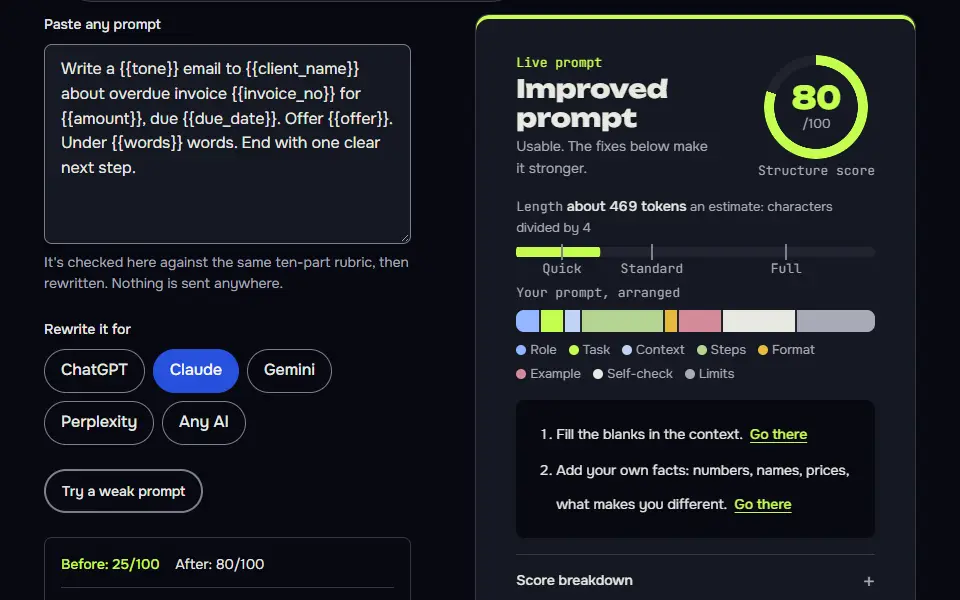
Write a {{tone}} email to {{client_name}} about overdue invoice {{invoice_no}} for {{amount}}, due {{due_date}}. Offer {{offer}}. Under {{words}} words. End with one clear next step.
How to use
- Copy it with the button above.
- Fill the blanks in {{double braces}} with your own details.
- Paste it into ChatGPT, Claude or Gemini and send it.
- Then follow up: ask for one change at a time.
Before you run “Prompt templates: the rewrite, ready to fill in” for the first time, the lesson on how to use AI prompts step by step walks through copying, filling and sending it.
Why it works
Everything specific to Dana became a named blank, so the same prompt now works for any late invoice.
Prompt templates examples
Text template: a reusable business email
Six blanks, such as tone, recipient and deadline, cover almost any business email, and the 'ask me' rule stops guessing.
You're writing for {{sender}}. Write a {{tone}} email to {{recipient}} about {{subject}}.

Key facts (use only these):
{{facts}}

What I want them to do: {{action}} by {{deadline}}.

Keep it under {{words}} words, with a clear subject line and one next step at the end. If a fact you need is missing, ask me before writing.
Image template: one product photo you repeat as a series
Changing one blank at a time, usually the angle, gives you a consistent series that only differs where you want it to. In Midjourney, change --ar 4:5 to your own ratio.
Any model
A {{product}} on {{surface}}, {{light}}, {{lens}} lens look, {{angle}} camera angle, {{mood}} mood, {{background}} background, {{ratio}} framing, no text, no logos. Keep the product, surface, light and background exactly the same as the other images in this series; change only the camera angle.
ChatGPT
Create a photorealistic product image: a {{product}} on {{surface}}. {{light}}. {{lens}} lens look, {{angle}} camera angle, {{mood}} mood, {{background}} background. {{ratio}} aspect ratio. No text and no logos. If this is not the first image in the series, keep the product, surface, light and background identical to the earlier images and change only the camera angle.
Gemini
A photorealistic product photograph of a {{product}} on {{surface}}, lit by {{light}}. {{lens}} lens look, {{angle}} camera angle. {{mood}} mood, {{background}} background, {{ratio}} format. Keep the image free of text and logos. For the next images in this series, keep the same product, surface, light and background and change only the angle.
Midjourney
product photograph, {{product}} on {{surface}}, {{light}}, {{lens}} lens, {{angle}} angle, {{mood}} mood, {{background}} background --ar 4:5 --raw --no text, logos
How to use
- Copy it with the button above.
- Fill the blanks in {{double braces}} with your own details.
- Paste it into your image AI and generate.
- Then ask for one change at a time, not a new prompt.
Video template: one short product shot
Every video prompt needs six decisions: camera move, subject, action, light, length and audio. Veo takes the length in the prompt, with options of 4, 6 or 8 seconds (Kling sets it in the duration setting, with 5 or 10 seconds).
Veo
{{camera_move}} on {{subject}}, {{setting}}. {{action}}. {{light}}. {{seconds}} seconds. Audio: {{audio}}. No people, hands, text or logos in frame.
Kling
{{camera_move}}, {{subject}}, {{setting}}, {{action}}, {{light}}, no people, no text, no logos
How to use
- Copy it with the button above.
- Fill the blanks in {{double braces}} with your own details.
- Paste it into your video AI, such as Veo or Kling.
- Then change one thing per try: camera, length or sound.
Turn a prompt that worked into a template
It automates the tedious part of templating and adds the guard rule most people forget.
Here is a prompt that gave me a good result:
<prompt>
{{good_prompt}}
</prompt>

Turn it into a reusable template. 1) Find every detail specific to this one job. 2) Replace each with a blank named by role in double curly braces. 3) Keep the rules and format fixed. 4) Return the template in a code block, then a table of blanks with columns Blank, What to type and Example fill. 5) Suggest one extra rule that would protect the template when someone fills it in badly. Use no more than {{max_blanks}} blanks.
Lesson 7 of 22Structure7 min
Lesson: Prompt templates
A prompt template is a prompt that worked, with the parts that change swapped for blanks like {{client}}. You fill the blanks each time and keep the wording that made it work.
Use it when
- You run the same kind of job often: invoices, product pages, replies.
- Other people will use your prompt.
- You want consistent output across every use.
Skip it when
- It's a one-off job.
- You haven't got a version that works yet: get one right first, then template it.
You're writing for a freelance designer. Write a warm but firm email to a client about an overdue invoice.

Key facts (use only these):
Invoice 2231, 480 pounds, due 3 October

What I want them to do: pay or reply with a date by Friday.

Keep it under 120 words, with a clear subject line and one next step at the end. If a fact you need is missing, ask me before writing.
**Subject:** Overdue invoice 2231 (£480, due 3 October)

Hi [Client name],

I hope you're well. I'm getting in touch about invoice 2231 for £480, which was due on 3 October and hasn't yet been settled.

I know invoices can slip through the cracks, so this is just a friendly nudge. I'd really like to get it tidied up so we can keep working together smoothly.

Could you please either pay the invoice or reply with a payment date by Friday?

Thanks so much,
[Your name]

---

That's about 85 words. I used placeholders for your name and the client's, since you didn't give them. If you'd like payment details or a late-fee mention included, let me know and I'll add them.
What to notice: The template's blanks were filled with an invoice number, amount, date and deadline, and every one of those facts appears correctly. Our grader's criticism is useful: "slip through the cracks" and "just a friendly nudge" make it warm but not firm. That belongs in the template as a rule, so every future email gets it.
Try it in Prompt StudioOpens the studio with the Template with variables technique already selected.
Quick check: 3 questions
Practice: write your own
Turn a prompt you use often into a template. Mark every changing detail as a blank in double braces and keep the rules that make it work.
Prompt Studio's rubric scores it right here. Nothing's sent anywhere.
Your progress is saved in this browser only. No sign-up.
When should you use a prompt template?
Use a prompt template for any prompt you'll run more than twice, such as weekly emails, product descriptions or an image series. Templates keep a team's output consistent, and the point isn't cleverness: it's that nobody retypes the prompt.
Don't force one on a one-off or exploratory chat; it'd slow you down. Iterate first, then freeze the prompt once it works. Write the fixed part well before you template it; how to write a prompt covers the parts it needs. Templates that feed code often fix the reply as structured data, and JSON prompt format shows how to ask for it.
Prompt templates FAQ
Still stuck? Build it in Prompt Studio. It'll score each part as you go.
What is a prompt template in simple terms?
A prompt template is a reusable prompt with blanks you fill in each time. The instructions and format don't change, and only the blanks do.
Where can I find free prompt templates?
You can find free prompt templates in this site's prompt library and on the three skeletons on this page. The skeletons and worked prompts are ready to copy, and the library holds the ones you save, with their versions. Most AI vendors publish prompt galleries in their docs too.
How many blanks should a prompt template have?
A prompt template should have three to six blanks; more usually means it's two templates. Fewer blanks make it quicker to fill, and there's less you can get wrong.
Are LangChain prompt templates the same as chat prompt templates?
No, LangChain prompt templates aren't the same as chat prompt templates; they fill the blanks in code, and chat templates are filled by hand. The idea underneath, fixed instructions plus named variables, isn't different, though.