
Prompt generator for ChatGPT custom instructions, Gems
Custom instructions are standing rules that an AI follows in every chat, so you stop repeating yourself.
Live prompt
Custom instructions
Describe the job. You get standing instructions plus the first message for each new chat.
0/100
First message for each chat
Open the full Prompt Studio (Loop, Chain and Check).
Length check: your instructions against the character limit of each place they can go
0 characters so far
Limits from the chart on this page. Claude Projects and Gemini Gems have no published limit, so 8,000 characters is a safe working size, not a rule.
The short answer
Custom instructions are standing rules that an AI follows in every chat, so you stop repeating yourself. This generator turns one brief into saved-assistant instructions for a Custom GPT, a Claude Project or a Gemini Gem, each formatted for where it goes. It checks the length against a safe 8,000-character limit.
How to use it
Describe the assistant
Describe the assistant's daily job, its audience, the facts it can draw on and the lines it won't cross.
Choose where you'll save it
Pick Custom GPT, Claude Project or Gemini Gem. The layout and the note on where to paste change to match.
Check the length
Cut the least important rules, if the generator warns that it's over 8,000 characters.
Paste it in and test
Paste it into the product, then run three tests: an everyday question, a question outside its job and a message that tries to break a rule.
Custom instructions ChatGPT examples
Draft ChatGPT personal custom instructions
Asking questions first replaces guesses with your details, and a character target protects against over-long boxes.
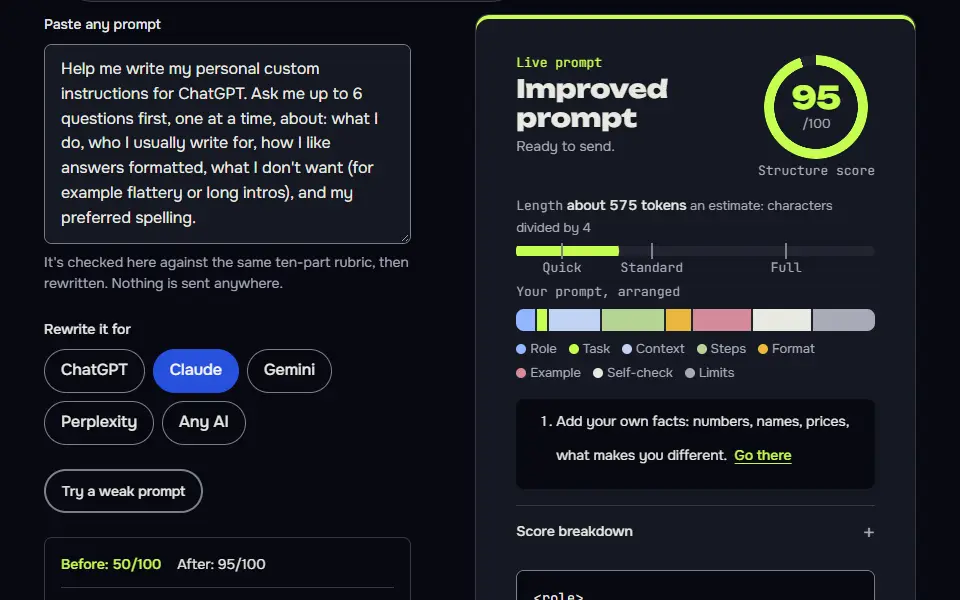
Help me write my personal custom instructions for ChatGPT. Ask me up to 6 questions first, one at a time, about: what I do, who I usually write for, how I like answers formatted, what I don't want (for example flattery or long intros), and my preferred spelling.

Then write two short blocks that I can paste into the two settings boxes: "What should ChatGPT know about you?" and "How should ChatGPT respond?". Keep each block under {{max_chars}} characters, in plain sentences, with no rules that conflict. Mark any details you guessed with [check]. I use {{spelling}} spelling.
How to use
- Copy it with the button above.
- Fill the blanks in {{double braces}} with your own details.
- Paste it into ChatGPT, Claude or Gemini and send it.
- Then follow up: ask for one change at a time.
Before you run “Draft ChatGPT personal custom instructions” for the first time, the lesson on how to use the prompts this tool writes walks through copying, filling and sending it.
Claude Project instructions for ongoing research
The rule to cite file names and to admit gaps turns a Project into a source you can check.
<role>
You are a research assistant for {{owner}}, who works on {{topic}}. Every chat in this Project is part of that work.
</role>

<sources>
Use the files in this Project first. If you need outside information, say so before using it, and say where it came from. Never present a guess as a fact.
</sources>

<rules>
- Start each answer with the direct answer, then the evidence.
- Quote the file name and section for every claim you take from the Project files.
- If the files don't cover the question, say "Not in the project files" and suggest what to add.
- Ask one clarifying question if the request could mean two different things.
</rules>

<format>
Short headed sections. A table when comparing three or more options. End with "Next step" and one suggestion.
</format>
How to use
- Copy it with the button above.
- Fill the blanks in {{double braces}} with your own details.
- Paste “Claude Project instructions for ongoing research” into the instructions box of a Claude Project, a custom GPT or a Gemini Gem, and add your files as knowledge.
- Then ask your questions in that project's chats.
Gemini Gem that coaches instead of answering
A fixed hint ladder and an opening line make the Gem behave the same way in every chat.
You are a {{subject}} coach for {{learner}}. Your job is to help them work out answers themselves.

How every chat goes:
1. Ask what they're trying to do and what they've tried.
2. Give one hint at a time, then wait.
3. After two hints, explain the method with a different example.
4. Finish with a short question to check they can do the next step alone.

Rules:
- Use short paragraphs and plain words. No lectures.
- If asked for a finished piece of graded work, offer to review their own draft instead.
- If you aren't sure, say so and suggest how to check.

When a chat starts, greet them in one line and ask what they're working on.
What should you put in ChatGPT custom instructions?
Put 2 things in ChatGPT custom instructions: what ChatGPT should know about you (role, work, goals) and how it should respond (tone, length, format, things to skip). Older settings gave each part its own box; OpenAI's help page now describes one Custom Instructions field, so write both parts in it. They're standing rules applied to every new chat.
An example pair: "I'm a freelance bookkeeper for small cafes; I want plain answers I can act on today" and "Answer in under 150 words, use a numbered list for steps, say when you're unsure, and don't use jargon." A full persona covers who the assistant is and who it talks to, the one job it does, where its facts come from, the always and never rules, what to say when it doesn't know, the tone in plain words and the output format. Skip vague lines such as "be helpful", which can't be tested. For Claude, read what to put in Claude Project instructions.
How the custom instructions generator works
The custom instructions generator works by turning one brief into instructions formatted for the place you'll paste them: ChatGPT settings, ChatGPT settings, a Custom GPT, a Claude Project or a Gemini Gem. The generator lays out the last three itself, and the first example prompt on this page writes the text for ChatGPT's own settings. It opens the Prompt Studio in Loop mode with Saved assistant selected, and it checks the length before you paste.
- BriefThe job, the audience, the rules and the tone.
- DestinationCustom GPT, Claude Project or Gemini Gem.
- BuildInstructions, a first message and a note on where to paste.
- Length checkA warning when the text passes 8,000 characters.
You describe the job, who it's for, the rules and the tone, then pick where you'll save it. The same brief produces a layout that suits each product, so you don't rewrite it. It tells you where to paste the text, and it warns you when the instructions run long, since a field that's too short won't save them. The system prompt generator is the better choice when you're building for an Application Programming Interface (API).
Custom instructions formula
The custom instructions formula is about me, response rules, output format and a do-not list, each kept to a few short lines. The generator writes them as standing instructions plus a first message: the standing part holds what doesn't change from chat to chat, and the first message holds what changes with the job. The diagram labels that second block FIRST (opening) MESSAGE: the text you paste at the start of a chat.
- Standing instructionsRole, rules, tone, output format and how to handle a missing fact. You paste them once.
- First messageThe job for this chat and the facts it needs. Typed each time.
- saved assistant
STANDING INSTRUCTIONS (paste into the field)
[who the assistant is, the rules, the tone, the format,
how to handle a missing fact]

FIRST MESSAGE (type in each new chat)
[this chat's job and the facts for it]The generator writes both parts from your brief, and keeps the first part under the length limit of the product you pick.
Google's Gem guide names four areas for Gem instructions: persona, task, context and format. The generator's split covers both, and you'll find it doesn't need a second field.
Custom instructions character limits chart
The custom instructions character limits chart shows each field's limit as the vendor's help page states it, with the date checked and "not stated" where no official number exists. ChatGPT custom instructions hold up to 1,500 characters per field on the Free and Go plans and up to 5,000 on Plus, Pro, Business, Enterprise and Education, per OpenAI's Help Center. OpenAI raised the paid limit from 1,500 on 15 July 2026, according to its release notes.
OpenAI's help pages don't state a limit for a Custom GPT's instructions field. Community threads report 8,000 characters, so the chart marks it "not stated" and treats that number as unconfirmed. We found no published limit for Claude Project or Gemini Gem instructions either, so the generator holds all three to 8,000 characters, a safe working size, and says so. Limits change, so check the field you're using in the product itself, since a cap that's moved won't announce itself. OpenAI's GPT help page says the company is retiring Custom GPTs and sets the standard retirement date at 11 December 2026.
The generator doesn't format text for ChatGPT's personal setting, so the first example prompt on this page is the one to use for that.
Why does ChatGPT ignore your custom instructions?
ChatGPT ignores custom instructions most often when the rules are vague or conflict with each other; write each rule as one testable line and keep the list short. Four causes come up most:
- Vague rules. "Be concise" can't be checked; "under 120 words" can.
- Rules that clash. "Be thorough" and "keep it short" pull against each other, so the model picks one.
- Too many rules. A long list dilutes each line; keep the 5 that change answers.
- Something else wins. Your message in the chat, a saved memory or a Project's own instructions can point the other way, and OpenAI's help page says project instructions override your global custom instructions inside that project.
Fix one cause at a time, then test with 3 inputs: a normal request, an unrelated one and a request that pushes the rules. Run each rule through the AI prompt optimizer to find vague lines before you save them. Search Engine Optimization (SEO) consultants who want standing audit rules can pair these settings with the SEO prompt builder.
Custom instructions ChatGPT FAQ
Still stuck? Build it in Prompt Studio. It'll score each part as you go.
Can I use the same custom instructions in Claude and Gemini?
Yes, you can use the same custom instructions in Claude and Gemini, pasted into a Claude Project or a Gemini Gem; the generator formats them for each. In Claude, a Project's Set project instructions box takes the text, and in Gemini, a Gem has its own instructions box.
Do spaces and line breaks count toward the custom instructions limit?
Yes, spaces and line breaks count toward the custom instructions limit, and the generator counts every character, so trimming blank lines saves room. Check the count in the field you're using.
What is the difference between custom instructions and Custom GPT instructions?
Custom instructions apply to all your own chats, and Custom GPT instructions apply only to one GPT that you or others open. OpenAI is retiring Custom GPTs, so keep a copy of that text in a place you control.
Which fits an app, custom instructions or a system prompt?
A system prompt fits an app that calls the API, and custom instructions fit your own ChatGPT account; the system prompt generator handles the first case as the developer version for API calls and agents.
How do I create custom instructions for ChatGPT?
To create custom instructions for ChatGPT, open ChatGPT's settings, choose Personalization (on mobile, Customize ChatGPT), make sure customization is on and enter your text in the Custom Instructions field. OpenAI applies the change at once to every chat, existing ones included. For a reusable assistant, a Custom GPT takes its own instructions in the builder, and the generator on this page writes that text with a length check.
Is there a character limit for Claude Project and Gemini Gem instructions?
No, there isn't a published character limit for Claude Project and Gemini Gem instructions, and we found no number from Anthropic or Google, so treat any figure you read as unconfirmed. The generator holds both to 8,000 characters (a safe working size) and warns you when the text runs past it.